

On this page
Overview
Every MetaTrader 5 account is tied to a specific trade server run by your broker. If you have ever typed your login and password into MT5 only to be told the server does not exist, the platform simply has not downloaded that broker's server entry yet. This happens most often with newer brokers, smaller prop firms, or accounts opened on a server that was renamed after a broker migration. The fix takes about two minutes once you know where to look.
Why MT5 can't find your server
MT5 keeps a list of known broker servers and refreshes it periodically from MetaQuotes. If your broker added a server recently, or if you are on a demo build that has not synced, the name simply will not appear in the search box yet. A firewall blocking outbound traffic on the platform's port can produce the same error message, so it is worth ruling that out before assuming the server is missing.
It also helps to understand what the server entry actually contains. Behind the friendly name you see in the search box sits a real network address, usually an IP or hostname paired with a port, along with a small certificate MT5 uses to verify it is talking to the genuine broker and not an impostor. When MT5 says a server "does not exist," it means that pairing has not been downloaded to your copy of the terminal yet, not that the broker's infrastructure is actually offline.
Method 1: Search for the server by name
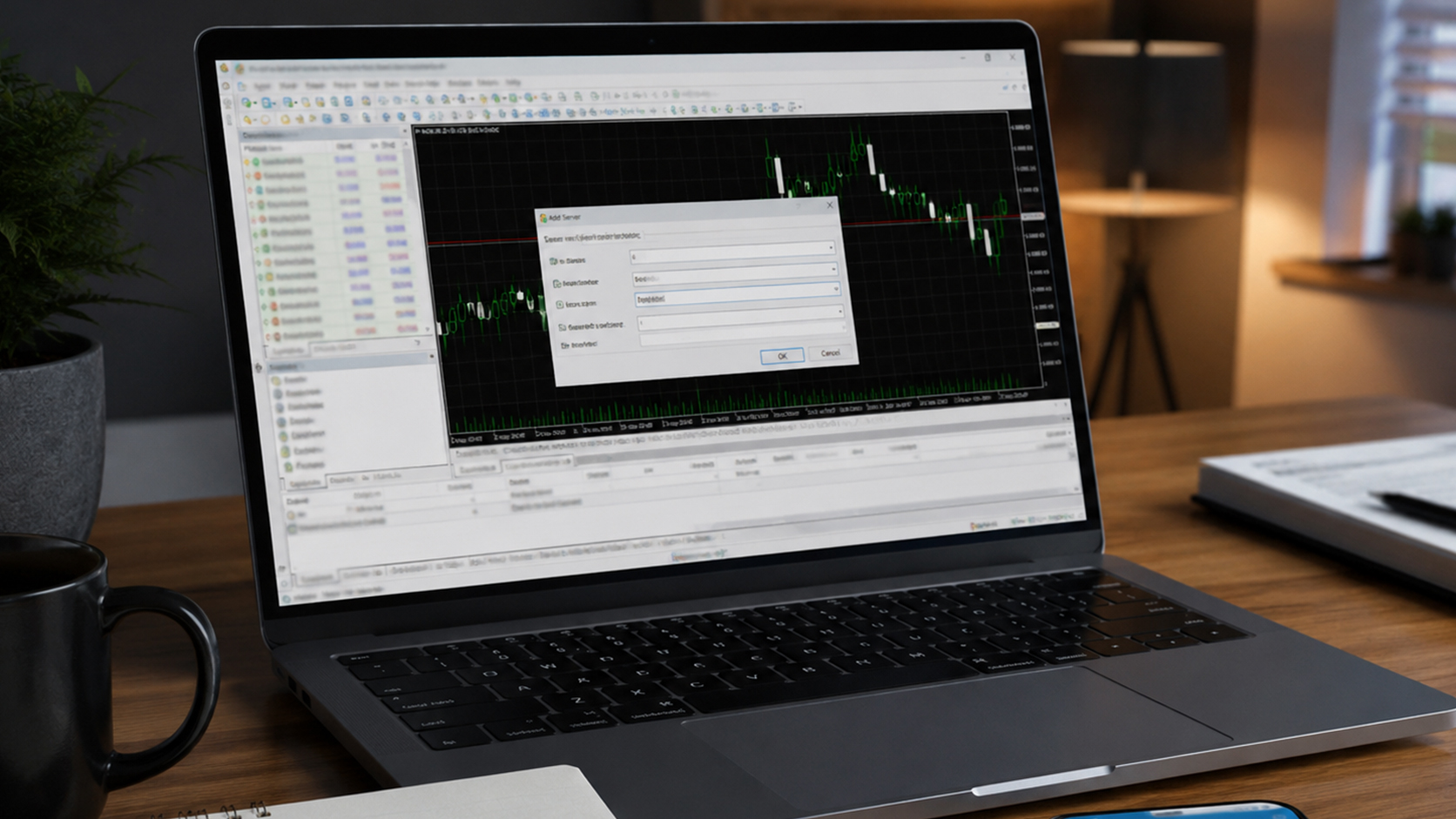
Open MetaTrader 5 and go to File, then Login to Trade Account (or right-click in the Navigator panel and choose Login).
In the Server field, type your broker's company name rather than the exact server string. MT5 searches by broker name, not by the technical server label.
Scroll through the results. Brokers often run several servers (Live, Live-2, Demo, ECN), so match the exact one listed on your account confirmation email.
Select the correct server, enter your login number and password, and click OK.
If nothing shows up after typing the broker's full name, move to the manual method below.
Method 2: Add the server manually
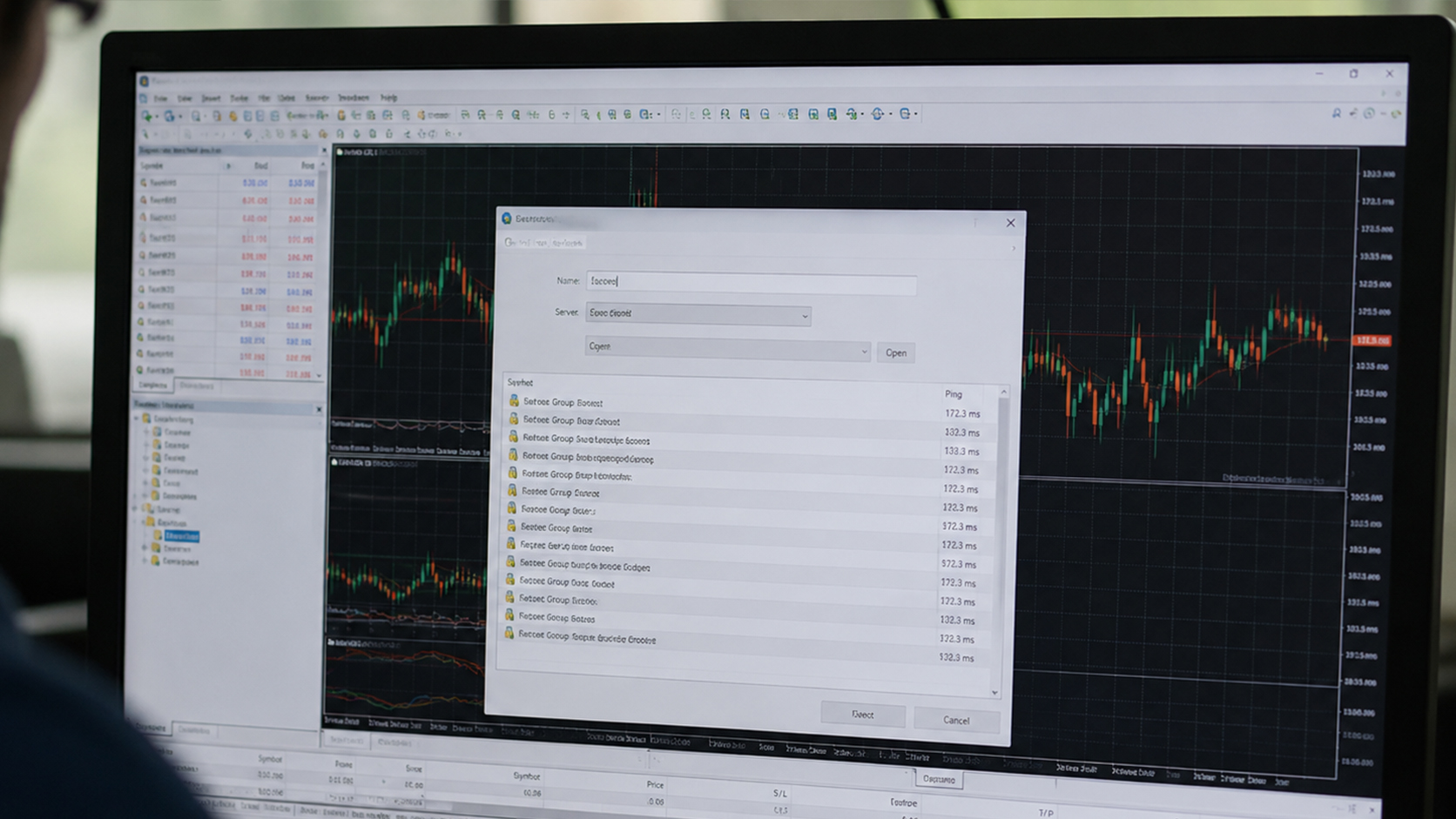
Every broker email or client portal that issues MT5 credentials also lists a server address, usually in one of two formats: a name like brokername-live01, or a raw address such as 185.xx.xx.xx:443. Ask your broker's support desk for this if it was not included.
Open File, then Open an Account, and choose "Get a demo account to trade with virtual money" as the entry point, even if you plan to log into a real account. This opens the broker search wizard.
Type the broker name. If it still does not appear, look for a "Scan" or "Find server" option, which pings addresses on your network for an active MT5 gateway.
If manual entry is available in your build, enter the server address exactly as given, including the port after the colon.
Once MT5 accepts the new server, close the demo wizard, return to File > Login to Trade Account, and the server will now appear in the list for your real login.
Common reasons it still won't connect
Typos in the server name. MT5 server names are case-sensitive in some builds and often include a hyphen and number, like Broker-Live3, not Broker Live 3.
An outdated terminal build. Update via Help > Check for Updates before troubleshooting further.
A firewall or antivirus blocking port 443 (or the custom port your broker uses), which produces a generic "no connection" message that looks identical to a missing-server error.
Logging into a demo server with live credentials, or vice versa. Confirm which account type your login belongs to.
The connection status bars in the bottom-right corner of the terminal are the fastest way to confirm what is actually happening. Solid green bars mean you are connected and receiving live quotes. Grey or flashing bars mean MT5 is still trying to reach the server.
If the bars stay grey for more than thirty seconds, check the Journal tab at the bottom of the terminal, since it logs the exact rejection reason, whether that is an invalid account, a wrong password, or a server that cannot be reached at all.
Keeping MT5 connected once you're in
Adding the server is only the first step. Prop traders running expert advisors or multiple terminals need MT5 to stay logged in around the clock, and a home connection that drops overnight or a laptop that goes to sleep will disconnect the terminal at the worst possible moment.
Running MT5 on a VPS positioned close to your broker's trade server keeps the connection live 24/5 and cuts the round-trip time between your orders and the exchange, which matters more the tighter your strategy's entries are.
Run MT5 Without the Connection Drops

Once your server is added, the next thing that costs traders money is a terminal that disconnects at the wrong moment. PropVPS runs a pre-configured Windows Server 2022 instance inside the same data centers as major exchanges, so MT5 stays logged in and your orders reach the market in under 1ms. Deploy a trading VPS in under 5 minutes and never worry about a dropped home connection again.
See PropVPS plans and pricing: https://propvps.com/pricing